Scale and deployment
Organize screens by region, department, and location
A regional team needs to reach several locations, a department needs to find its own screens, and local publishers need to know which messages they maintain. Familiar names and a useful folder tree help, but organization is more than reproducing an organizational chart.
A location label might describe where a screen is installed, who may edit it, who owns its content, or who should see a message. Those are related decisions, not interchangeable ones. Plan how teams share screens and content before creating folders or splitting the organization into sites.
Give each structure a clear job
When screens become difficult to find or people cannot explain their access, start by separating these questions:
| Question | Structure that answers it |
|---|---|
| Which settings should these screens inherit? | Screen folders group stable areas such as regions, departments, wards, stores, campuses, or screen functions. |
| Which resources may this team use? | Groups grant access to the team's resources. |
| What may a person do with those resources? | User profiles define access type and permitted actions. |
| Which information belongs together? | Channels organize content for an audience or purpose. |
| Where and when should a message play? | Bookings carry content, targets, schedules, and publishing state. |
A folder can supply Channels & layout, active time, settings, and group access to descendant screens that inherit them. It does not replace the decisions about permissions or campaign audiences.
Separate sites provide a further boundary when users, resources, settings, and administration must be isolated. Teams that can share those things can often use groups within one site. The user access types explain how site-wide and group-based access differ.
Build around lasting responsibilities
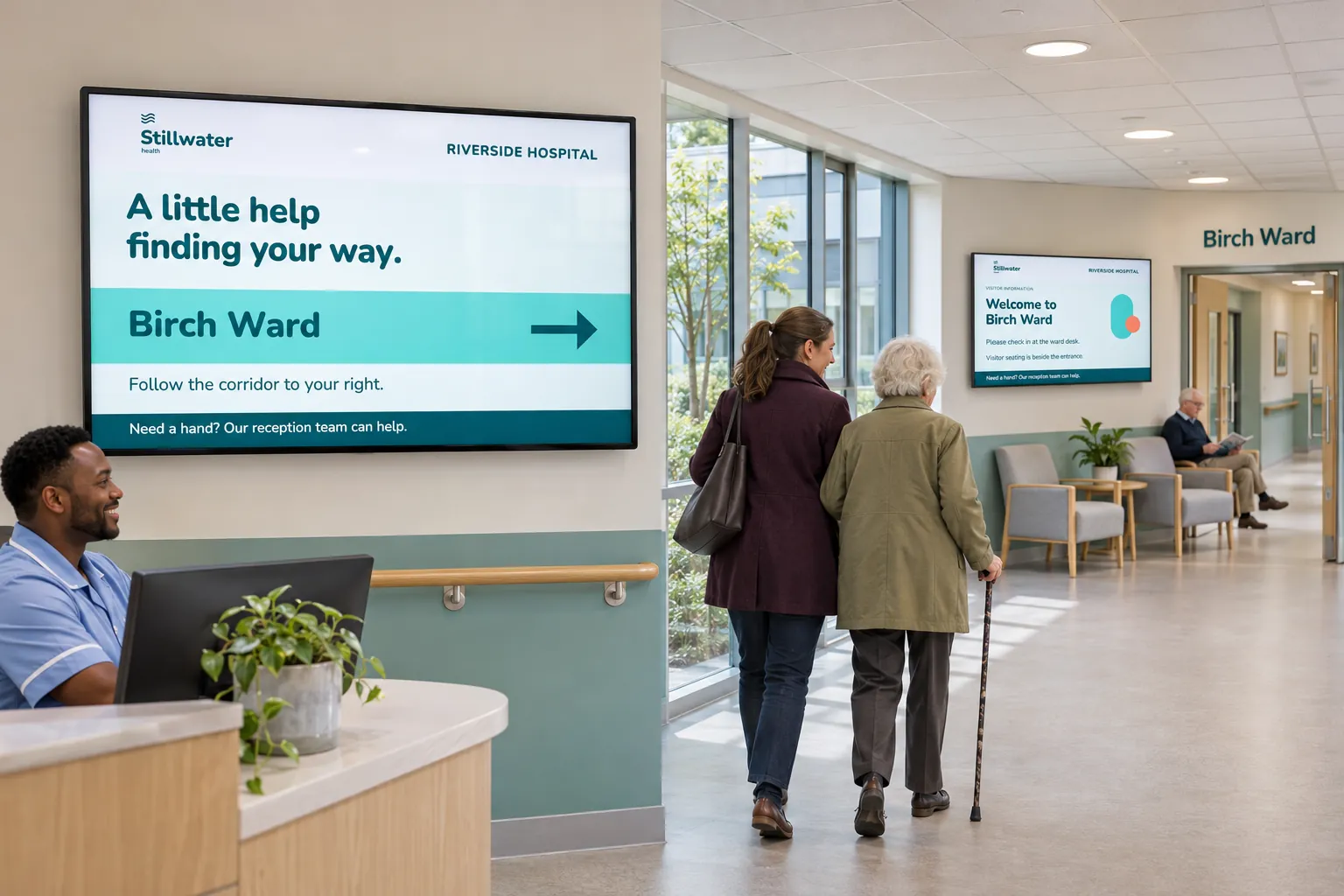
Retail and workplace screens may fit a region-and-location tree. Healthcare teams may use wards and departments. Municipal services may distinguish schools, libraries, campuses, and service offices. A manufacturer may organize screens by facility, production line, department, or function.
The useful choice reflects who maintains the screens and their information. Teams preparing a rollout should ask that question before copying an existing folder structure. A structure that local teams understand avoids central staff having to select each location manually or explain every access assignment again.
Add a location to a shared site
Consider a company with regional folders and several locations in each region. Consistent names and descriptions identify who manages each location and which settings its screens should inherit. Each local team has a group granting access to its screens, channel, and content resources.
The central team maintains shared news. Local teams maintain notices in separate channels and bookings, so either can change its information without replacing the other's work. Coordinate shared and local messages across locations explains how the content fits together.
New screens are registered or moved into the folder whose defaults they should use. Configure screen folders covers folder setup. Then use Publish on Channels to create a booking and select the location folder as its target.
Before extending the pattern, test access and the publishing result. A local group does not restrict a user who has site-wide access; profiles and resource assignments must be reviewed together.
Keep the structure useful as the organization changes
Keep folder trees shallow enough to navigate. Record each folder's purpose, responsible groups, and important defaults, and review them when locations move, teams change, or screens take on a new role.
Temporary campaigns do not need a permanent branch in that tree. Keep their timing in bookings, and use tags and tag folders for audiences spanning several folders. Target groups of screens without selecting each one explains that approach. Separating lasting responsibilities from changing audiences lets new locations join without rebuilding every booking or access assignment.